
Its been a long 12 year from my last post. As time changed and environment changed, I wanted to share how my setup as CTO are. The most interesting is AI, how does AI impact a CTO’s setup and workflow. AI is now part of the toolchain — not a side experiment anymore.
This post is my version of that walkthrough. Sometimes I ship code that works in a different system, especially the automation / ML part, but I also run a team, do a lot of architecture sharing, recording, and switching contexts multiple times a day. The setup reflects that.
Inspired from How I set up my MacBook Pro as an ML engineer in 2022.
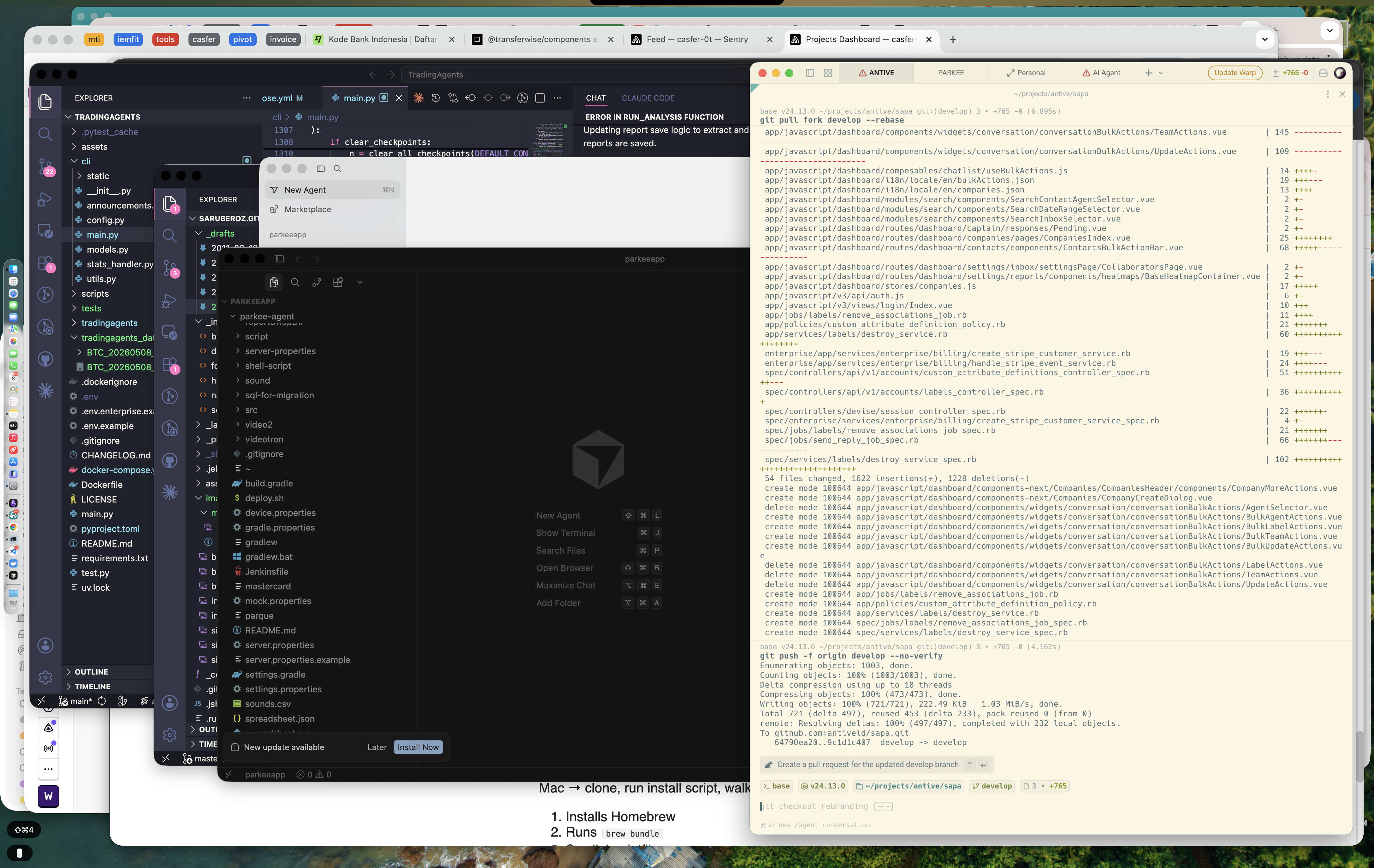 My usual layout — Warp on the 2nd Desktop, Cursor/VSCode w/ Github Copilot / Claude, and everything else stacked in 1st Desktop.
What’s different from a 202 setup
Before the tool-by-tool walkthrough, the why — because the difference between a 2022 and a 2026 setup isn’t the apps, it’s the philosophy.
- AI is in the loop, not in a tab. In 2014, there is no AI in 2022, you opened ChatGPT in a browser tab when you got stuck. In 2026, Claude is in the terminal (Claude Code), in the editor (Cursor), and on the desktop as a thinking partner. The tab is the fallback, not the entry point.
- Metrics. I still track metrics, but now not only Technical metrics like uptime, issue, but financial business metrics; Eg. How many new Clients, how many Churn, whats the GMV, EBITDA
3.. Python tooling consolidated.
pyenv+pip+poetry+virtualenvcollapsed intouv. Installs are 10–100× faster and the mental model is simpler. - Containers got lighter. Docker Desktop has been replaced by OrbStack for most folks I know — fast, native, no fan spin.
- The terminal became AI-native. Warp replaced iTerm2 as the default in a lot of setups, and the AI command suggestions earn their keep.
- Apple Silicon is fully mature. No more Rosetta workarounds, no more “does this work on M-series?” googling. Everything just runs.
- The CTO hat changes the optimization. As an IC engineer, you optimize for flow. As a CTO, you optimize for fast context switches — between code, meetings, hiring, product roadmap strategy docs, demos,and most important ROI. The setup below is built for that.
Hardware
I run a MacBook Pro with Apple Silicon. The exact specs you want depend on what you do day-to-day, but for a CTO workload — code + meetings + recording + occasional local model inference — I’d target:
- 36GB+ RAM (32GB is the floor; you’ll regret 16GB the first time you run a local LLM)
- 1TB+ storage (containers, source code, dependency, AI models, Technical Docs, — they add up fast)
- An external monitor + good webcam + a great microphone (you’re on mic a lot more than you think)
A clean Mac out of the box. Now to make it useful.
macOS baseline
I make a small set of system tweaks before installing anything else. These have stayed roughly the same for years:
- Trackpad → Tap to click, three-finger drag enabled (Accessibility settings)
- Keyboard → Key repeat: Fast, Delay: Short — non-negotiable for terminal work
- Finder → Show all filename extensions, show hidden files (
Cmd + Shift + .) - Dock → auto-hide, magnification off, position left (more vertical screen real estate)
- Hot corners → top-right for desktop, bottom-right for screen saver
If you want a one-shot script: there’s a community-maintained macOS defaults gist floating around; I cherry-pick from it.
Homebrew & a reproducible setup
Homebrew is the foundation. Install it first:
/bin/bash -c "$(curl -fsSL https://raw.githubusercontent.com/Homebrew/install/HEAD/install.sh)"Then everything else gets declared in a Brewfile so the next Mac is one command away. This is the single biggest reproducibility win I made over the years — moving from “remember to brew install each thing” to brew bundle.
~/Brewfile:
# CLI tools
brew "git"
brew "gh"           # GitHub CLI
brew "jq"
brew "ripgrep"
brew "fzf"
brew "bat"
brew "eza"          # modern `ls`
brew "tmux"
brew "uv"           # Python package + env manager
brew "mise"         # polyglot version manager (also handles JDKs)
brew "pnpm"
brew "go"
brew "gradle"       # JVM build tool
brew "bun"          # fast JS runtime + test runner
brew "deno"         # secure-by-default JS/TS runtime
cask "temurin"      # Eclipse Temurin (OpenJDK)
cask "google-cloud-sdk"   # provides the `bq` CLI for BigQuery

# Apps
cask "warp"
cask "visual-studio-code"
cask "cursor"
cask "claude"
cask "google-chrome"
cask "raycast"
cask "nordpass"
cask "whatsapp"
# Outline (getoutline.com) and Google Chat are web-based — install as PWAs
cask "linear-linear"
cask "zoom"
cask "figma"
cask "tableplus"
cask "orbstack"
cask "obs"
cask "keycastr"

# Fonts
cask "font-jetbrains-mono"
Run it with:
brew bundle --file=~/BrewfileOne command, full machine setup.
Terminal — Warp
I switched from iTerm2 to Warp about two years ago and haven’t looked back.
What earns its keep:
- AI command suggestions — typing the description of what I want and getting the
awk/jq/gh apiincantation drafted is a daily time-saver - Blocks — every command + its output is a separate, copyable, shareable unit. Pasting a block into a PR comment instead of a wall of text is small but lovely.
- Workflows — common runbooks (deploy, restart, check logs) saved as parameterized commands
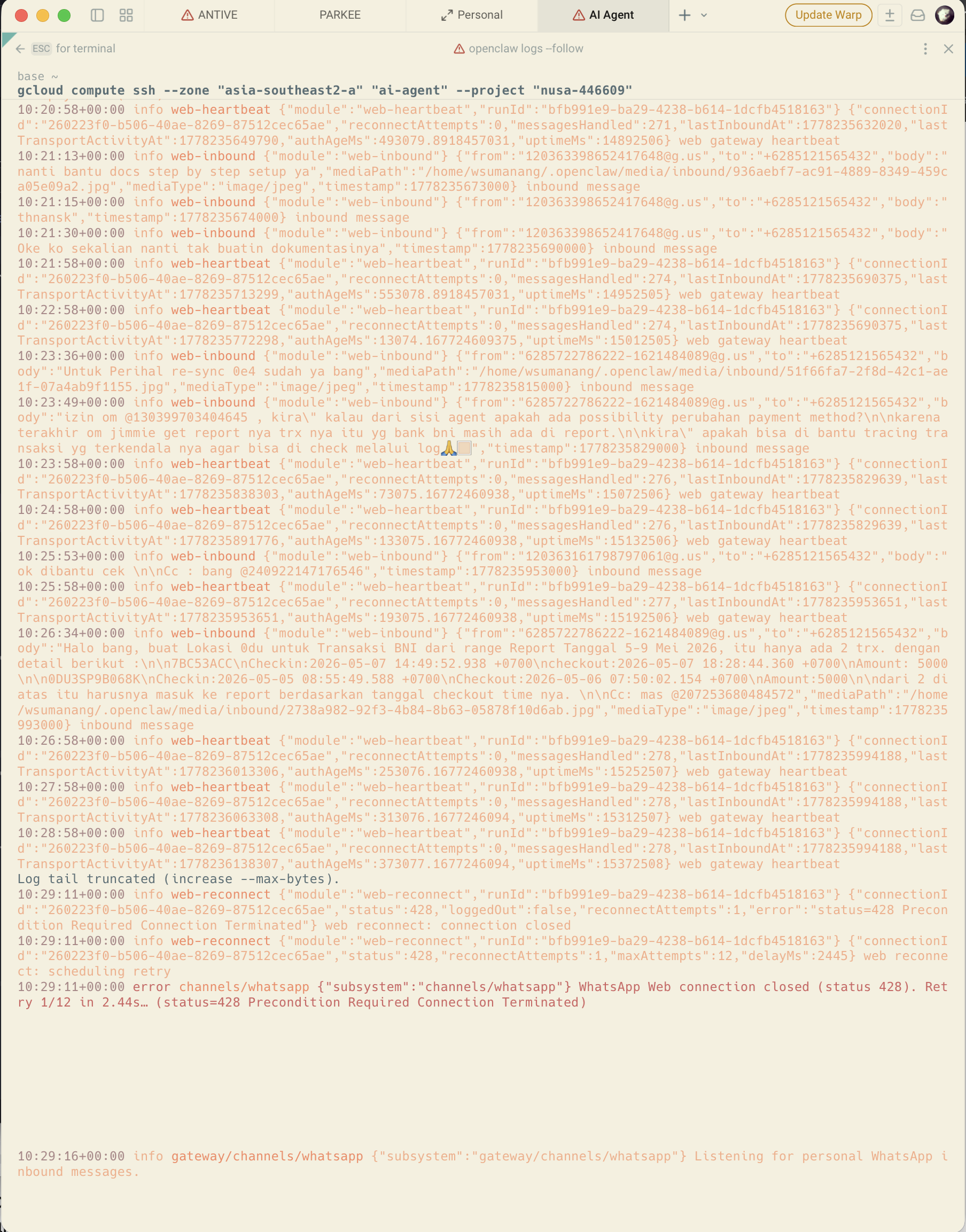 Warp’s AI suggestion turning “show me processes listening on port 3000” into the actual command.
I run zsh inside Warp with Starship for the prompt, plus the usuals: zsh-autosuggestions, zsh-syntax-highlighting, and fzf keybindings.
Apps - Most of my apps to improve my working efficiency
As i work with different project, the easier it is to switch context the better it is, so *Shortcuts everywhere, I mostly use Rambox for my communication and context tools. flycut and boring.notch to help me when I code.
And above all oc as my personal assistant, reminder, question for issue, bug, team KPI/metrics tracker.
Rambox
A workspace browser that runs all my web apps in one window — Google Chat, WhatsApp Web, Outline, Linear, Gmail — each as its own pane behind its own keyboard shortcut. Instead of ten browser tabs and twelve dock icons, I get one window with named workspaces I flip through. I keep separate profiles for Work, Founder, and Advisory, so each context has its own logged-in accounts and notification rules. It’s the closest thing to “tmux for the web” I’ve found, and the single biggest reason my dock isn’t a graveyard of Electron apps.
Flycut
A minimal, open-source clipboard manager. Cmd + Shift + V opens a stack of recent copies; arrow keys to pick, Enter to paste. Sounds trivial until you notice how many times a day you copy something, then copy something else, then need the first thing back. Flycut turns “I lost it” into a non-event. No telemetry, no upsell, no AI feature trying to summarize my clipboard — just a stack that remembers.
boring.notch
Reclaims the MacBook notch as useful UI. Media controls, AirDrop progress, calendar peek, Pomodoro timer — all surfacing around the camera cutout instead of the notch being dead pixels. The small win is that I look at the top of my screen many times an hour, and giving that real estate a job compounds. Hover gestures + customizable widgets make it feel like a hardware feature Apple should have shipped.
OpenClaw
The piece that ties the workflow together. oc is my personal AI assistant — reminders, issue queries, bug triage, and team KPI / metrics tracking — all in one surface instead of jumping between Linear, the BigQuery console, and my notes app. Patterns I lean on daily:
- “Remind me when X happens” — natural-language reminders that fire on the right signal, not just at a wall-clock time
- “What’s the status of issue #432?” — pulls Linear context without me opening it
- “Where are we on Q2 churn?” — runs the dashboard query against BigQuery and answers in line
- “Draft a 1:1 agenda for $person” — pulls recent Outline notes + Linear assignments + calendar history
It’s the assistant most aligned with how I actually work — issues, KPIs, reminders — rather than a generic chatbot trying to be everything.
Editors — VSCode and Cursor
I use both. The split:
- Cursor for any task where I want AI agency in the editor — refactors that touch many files, exploring an unfamiliar codebase, writing tests against existing implementation. Cursor’s agent mode is good enough now that a non-trivial percentage of code changes start there.
- VSCode for everything else — quick edits, reviewing diffs, working with tools that have first-party VSCode extensions but not Cursor ones, pair-debug sessions where I want a stable, non-suggestive editor.
Both have settings sync turned on, so a fresh machine inherits my keybindings, theme (One Dark Pro), and font (JetBrains Mono, ligatures on) automatically.
Extensions I install on day one:
- GitLens
- ESLint / Prettier
- Python + Pylance
- Go
- Java
- Docker
- Error Lens
- Thunder Client (light API testing)
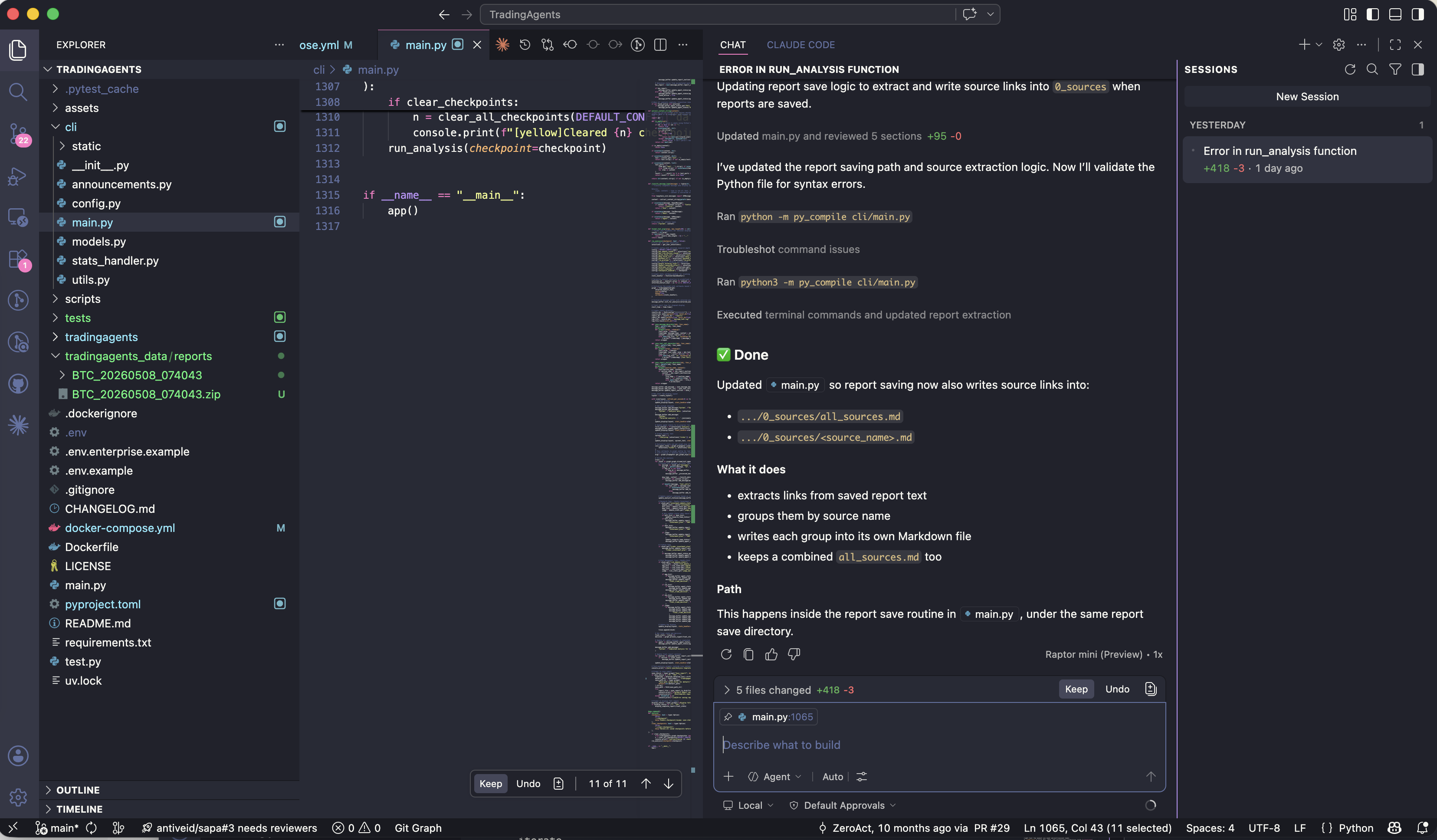 Cursor’s agent panel mid-edit. This is the single biggest workflow change from 2022.
AI in the toolchain — the 2026 difference
This is the section that makes a 2026 setup post different from a 2022 one. I use three AI surfaces, and each has a distinct job.
Claude desktop app — the thinking partner
The Claude app sits open on my second screen most of the workday. I use it for:
- Drafting — strategy memos, hiring rubrics, customer emails, this very post
- Code review — paste a diff in, ask “what would you push back on?”, and let it argue
- Architecture sketching — describe a system, ask Claude to poke holes, iterate
It’s less about generating final output and more about thinking out loud with someone who reads at infinite speed.
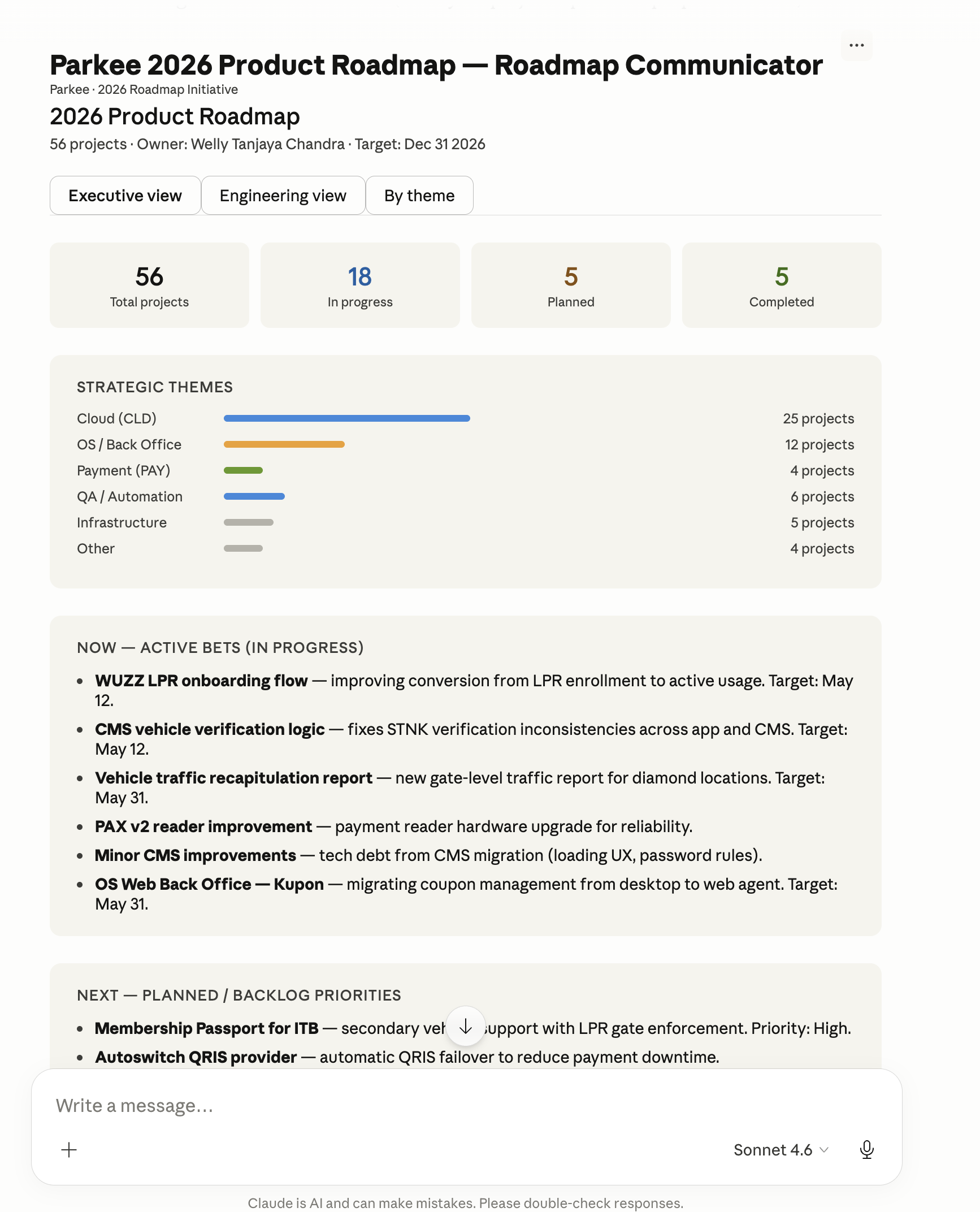 Claude with a project loaded — the desktop app’s project feature is genuinely useful for keeping context.
Claude Code — the terminal agent
Claude Code is what I reach for when the work is “do a thing in this repo” rather than “help me think.” It runs in the terminal, has access to my tools, and is unreasonably good at the kind of tasks that used to take a dedicated afternoon — writing test scaffolding, doing bulk refactors, threading a small change across many files.
I run it from Warp, in the project directory. The fact that it lives where my code lives is the whole point.
Cursor — the inline editor
When I’m already in the code, Cursor’s inline edit (Cmd + K) is faster than switching contexts to the desktop app. It’s the right tool for changes scoped to a few files, where the model needs to see the surrounding code.
How I pick
A rough decision tree:
- Thinking, drafting, no code involved → Claude desktop
- In the editor, small-to-medium scoped change → Cursor
- Multi-file refactor or anything that needs shell access → Claude Code
Where AI doesn’t help (yet)
It’s worth being honest. I still write the prompts, name the abstractions, decide what good looks like. AI is bad at:
- Knowing what not to build
- Pushing back on a bad product decision
- Reading the room in a hard conversation
The CTO job is mostly judgement, and judgement still doesn’t auto-complete.
Agentic tools
The bigger shift in 2026 isn’t AI assistants — it’s AI agents: tools that take actions, run for minutes or hours, and come back with a result. As a CTO, this is where the time savings compound, because I can hand off a task and stay in a meeting.
My top 3:
- Claude Code — covered in the AI section above, but worth re-anchoring here: it’s the agent I rely on most. Shell access, edits files, runs tests, makes commits. A common pattern: kick off a refactor before a 1:1, review the diff after.
- Cursor Composer / Agent mode — agentic inside the editor. Multi-file edits where the model decides which files to touch. Best when the change is scoped to one repo and I want to see each edit before accepting.
- n8n with AI nodes — workflow automation where some steps are LLM calls. I use it for things like summarizing new GitHub issues into Linear, or drafting a daily standup digest from Slack. Not coding, but agentic in the workflow sense.
Honorable mentions: Replit Agent for spinning up prototypes, the Computer Use API for browser-driven research, and scheduled Claude Code routines for anything that should run on a cron.
The CTO framing: agentic tools work best when the task is bounded and verifiable — “implement this, tests must pass” — and you can step away. They’re worse for fuzzy work where you need taste in the loop. Use them where the answer can be checked, not where it needs to be felt out.
Browser — Chrome with profiles
The single best Chrome trick is profiles and tabs. I run multiple of those, will share the tabs groupings:
- sec — company Google account, work bookmarks, work-only extensions
- shareholder — investor decks, board materials, recruiting
- settlement — current task im focusing
- perf review — full company perf review from business and product side. i run it twice yearly as input to the team
Each has its own group color. Switching contexts is a single click.
 multiple grouped contexts / tabs, no cross-contamination.
Extensions: NordPass, uBlock Origin, React/Vue devtools, and a privacy extension or two.
Dev runtimes
Top 3 languages I reach for
- Python — my default. Backend services, scripts, AI/ML workflows. The big shift since 2022 is
uvreplacingpip+pyenv+virtualenv+ most ofpoetry. Installs that took a minute take a second. - Go — for services, CLIs, and anything where I want a static binary and predictable performance. Still the gold standard for “boring tech that scales.”
- Java — for enterprise integrations, high-throughput backend services, Android, and anything in the Kafka / Spark / Elastic / Cassandra ecosystem where the JVM client is the first-class citizen. My stack:
- JDK: Eclipse Temurin, versioned per-project with
mise - Build: Gradle (Kotlin DSL where I have the choice)
- Backend framework: Spring — still the most boring-and-correct answer for a JVM service
- Async / reactive: RxJava for anything where the natural shape is streams + composable async
- DI: Dagger — compile-time, no reflection, the right call when startup time and predictability matter
- UI: JavaFX for desktop UI when I need a real native client (rare, but when it’s right, it’s right)
- JDK: Eclipse Temurin, versioned per-project with
Honorable mention — JavaScript / TypeScript. Not in my daily top 3 the way Python or Go is, but essential for anything user-facing or anywhere I’m reading the npm ecosystem. The runtime layer got interesting in 2026:
- Bun — fast iteration on side projects, and the built-in test runner alone is worth it
- Deno — secure-by-default, TypeScript without a build step, great for one-file scripts you actually want to share
- Node — still the right call when ecosystem coverage and long-term stability matter most
Worth keeping all three fluent — they each shine for a different shape of problem.
A typical setup snippet on a fresh machine:
# Python
uv python install 3.12
uv venv && uv add fastapi pytest

# Go
go install ...

# Java — JDK via mise, build with Gradle
mise use java@temurin-21
gradle -v

# JavaScript / TypeScript (honorable mention) — Bun, Deno, or Node
mise use node@22 && pnpm install
bun init
deno run --allow-net script.ts
Top 3 databases
- PostgreSQL — the default. With
pgvector, Postgres now doubles as the vector DB for RAG, which removes a whole category of “do we add a separate vector store?” decisions. - Redis — caching, sessions, rate limiting, lightweight queues. Still the right tool the moment you need sub-millisecond reads.
- SQLite — local dev, edge, and increasingly production (with Litestream. The “boring tech that punches above its weight” winner of the last few years.
For analytics and big data, BigQuery is what I reach for at scale — serverless, separation of storage and compute, and the bq CLI makes it easy to drop into a normal terminal workflow alongside Postgres.
Containers — OrbStack instead of Docker Desktop. Lighter, faster, native.
Database client: postico. API testing: I’ve moved off Postman to either Bruno or just curl + jq.
CTO workflow tools
This is what makes the post a CTO setup rather than an engineer setup. The team and async layer matters as much as the editor.
- Linear — issue tracking. Fast, opinionated, beats Jira for small/mid teams.
- Outline — strategy docs, 1:1 templates, decision logs, runbooks. Open-source-friendly knowledge base; I prefer it to Notion when I want my team’s wiki to feel less like a database and more like a wiki.
- Google Chat + WhatsApp — internal team comms in Google Chat (Workspace-native, less ceremony than Slack), WhatsApp for partners, vendors, and anyone outside the company. DND most of the day, notifications scoped per-channel.
- Granola — AI meeting notes; I stopped trying to write notes during calls and my conversations got better
- NordPass — team vaults for shared infra credentials. Browser extension is the daily driver.
- Raycast — launcher, clipboard history, snippet expansion. Replaces Spotlight + Alfred + half of my muscle memory.
- OpenClaw + Google Calendar — OpenClaw as the AI assistant front-end, Google Calendar as the source of truth. The combo lets me ask “what’s my next free 90-minute block?” and book it without leaving the keyboard.
The big workflow point: I batch IC coding into 2–3 hour blocks early in the day, then flip into management mode. The setup supports that mode-switch (chat collapses, Linear opens, calendar surfaces).
Content creation & recording
As of my 2026 goal, I wanted to share my community what I did, so i plan to start content creation. The plan to use it for remote work, and start content creation along the way.
OBS
OBS Studio for anything that’s not a quick async clip. I keep three scenes:
- Cam only — for talking-head intros / outros
- Screen/Ipad + cam — the workhorse, screen with a corner camera bubble; i use ipad when i need to draw stuff like architecture and explaining
- Screen/Ipad only — when the demo is the focus
 Three scenes, hotkey switchable.
KeyCastr
KeyCastr surfaces your keystrokes on screen. Indispensable for any recording where you’re showing keyboard-driven work — terminal demos, IDE walkthroughs, anything where the viewer needs to see the shortcut.
brew install --cask keycastr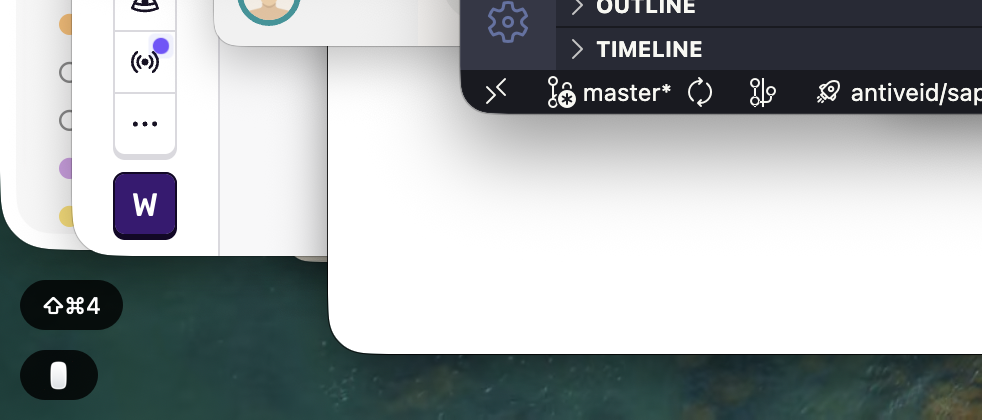 KeyCastr’s overlay
For quick async, OBS is still the lightest path. For edited content, Descript is the one I plan to use
Dotfiles & reproducibility
Everything I customize lives in a dotfiles repo, version-controlled. New Mac → clone, run install script, walk away. The script:
- Installs Homebrew
- Runs
brew bundle - Symlinks dotfiles
- Sets macOS defaults
- Triggers VSCode / Cursor settings sync sign-in
That’s the whole bootstrap. Twenty minutes from a clean install to a working environment.
Closing thoughts
The biggest shift from my 2014 is AI, as it empower my everyday workflow. The editor, the terminal, and the desktop all have an AI surface, and I use each for a different shape of task.
The second-biggest shift is reproducibility. A Brewfile plus a dotfiles repo plus settings sync means the setup itself is a few commands, not a weekend.
I’ll probably revisit this post later. Local model inference, on-device agents, and whatever Apple does with the AI side of macOS are all moving fast enough that something here will look quaint by 2027/2028.
If you set up your Mac differently — especially the AI part — I’d love to hear what you do. Comment below.